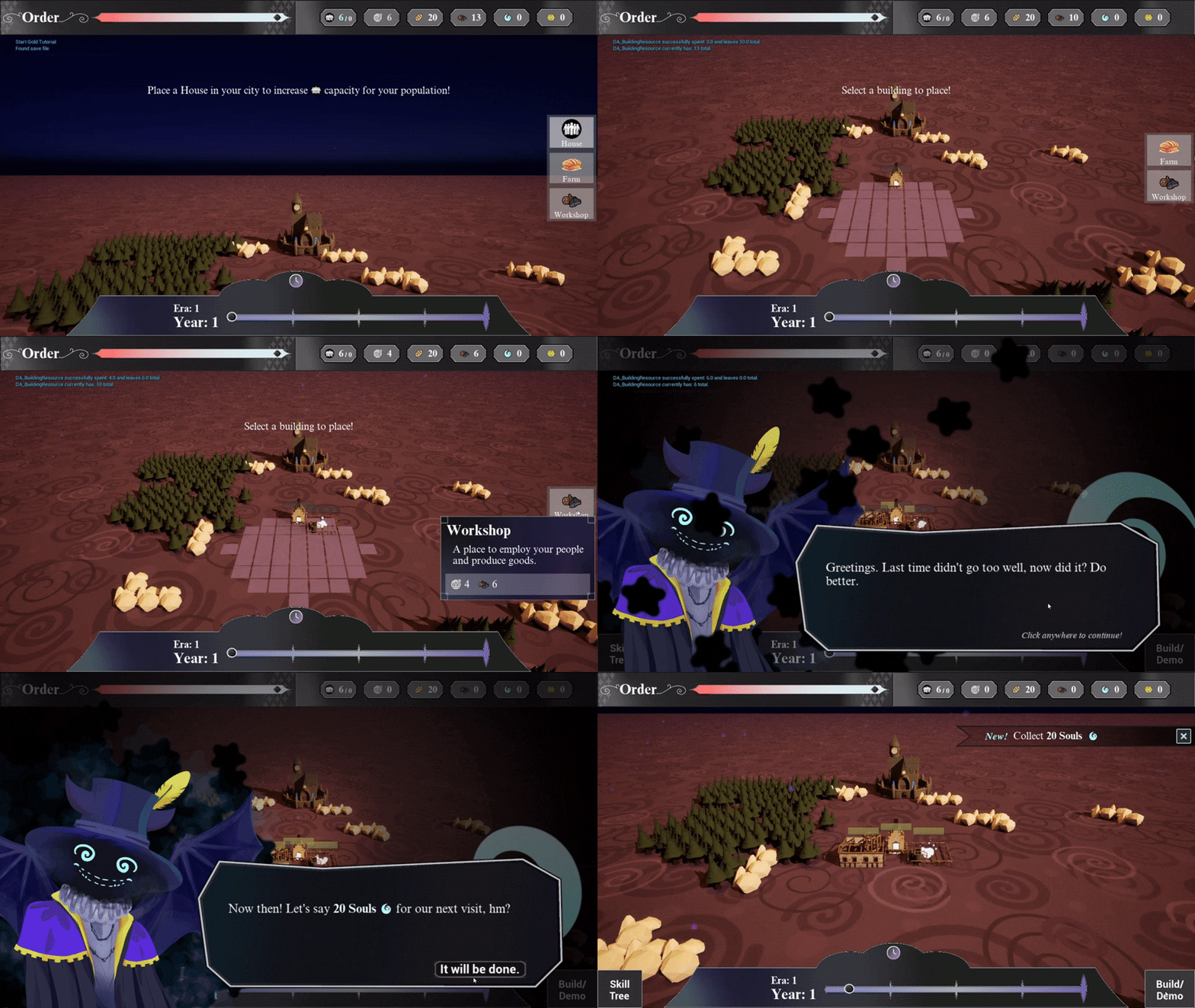
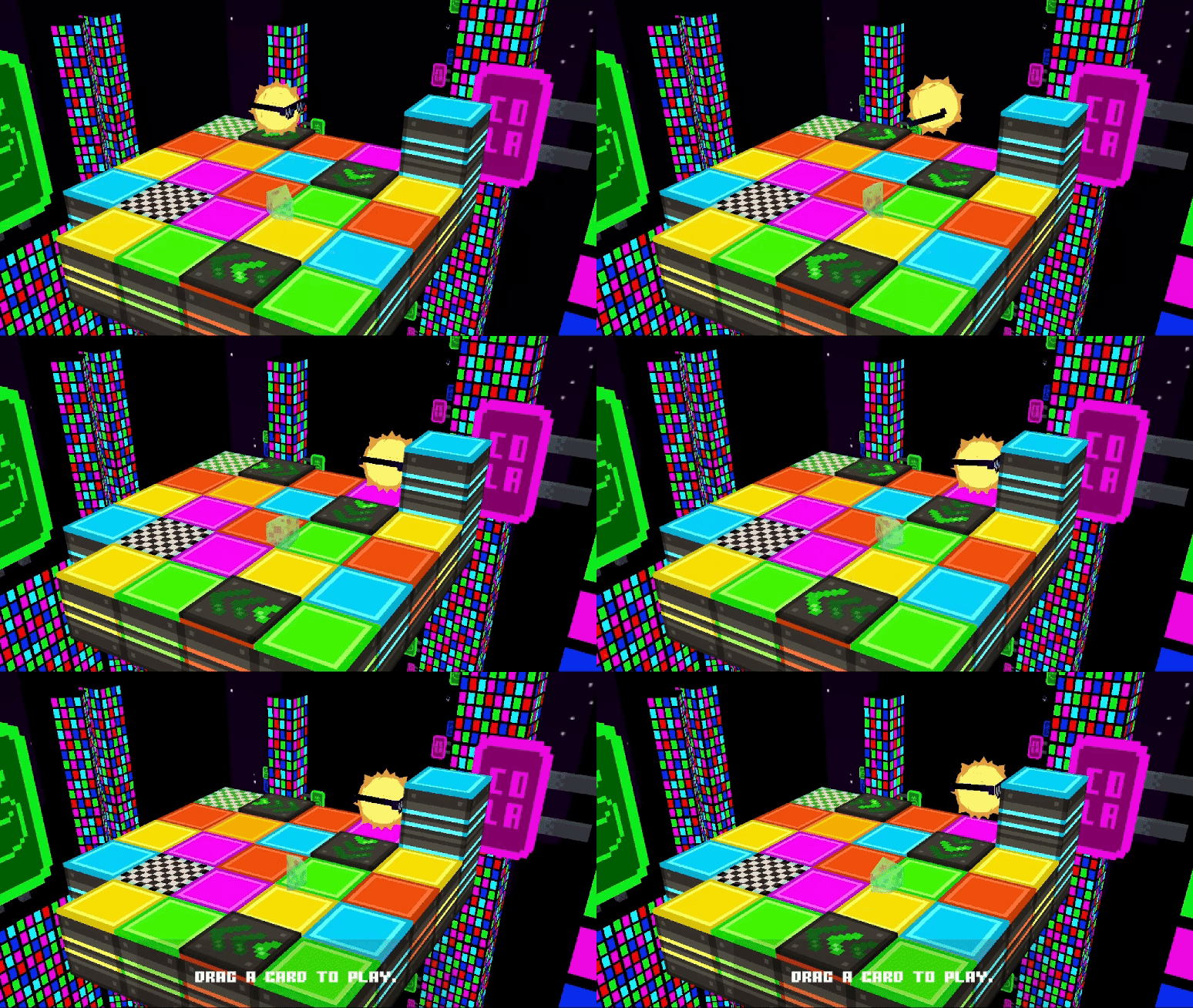
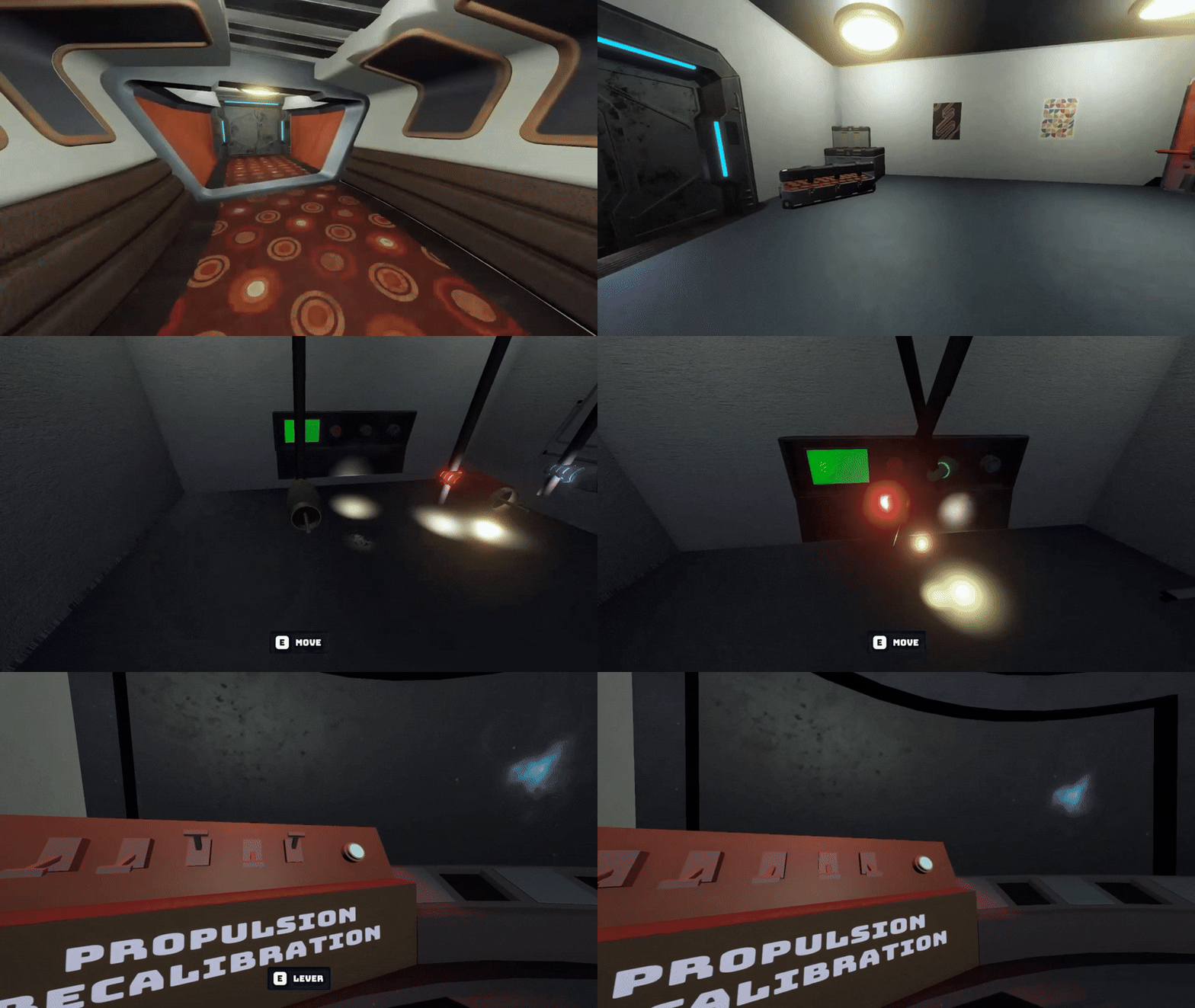
 8 Summer '25 Tools UI 8 Summer '25 Tools UI
 Developed functionality for a Level Editor Tool designed to be used by the player as well as in-house devs making the main campaign.
Designed and implemented a HUD for the level editor to easily switch between editing modes, level objects, and sorting layers.
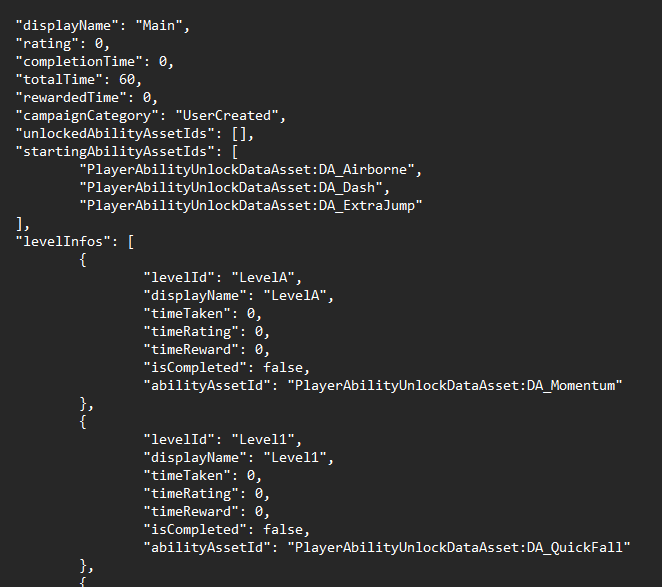
Developed game saving and loading logic using JSON and C++ designed for ease of sharing levels.
Refactoring using Command programming pattern and tying it to UI with C++
A 2D speed-running platforming game where the player races to complete a campaign by a certain timestamp. Completing levels in a campaign unlocks new moves for the player so they can go back and re-do previous levels faster, and make more time to complete the next level! The game also includes a level editor so players can make their own campaigns.
In order to create the functionality for the Level editor, I started by making the player character and setting up movement input. I ensured the player could only move up/down and side-to-side and bound movement to WASD, the arrow keys, as well as click and drag. Then I made the zoom in/out functionality using the scroll wheel.
After the movement was set up, I worked on the grid and prototyped how placement would work. The size of the grid needed to be infinite to not limit the level designers, and the size of each grid cell needed to be variable as the level assets still needed to be made. Because of these requirements, I decided to calculate the grid based on vector positions. Based on the hit location, I had to run the vector through an equation to get the “snapped to grid” location based on the current grid size. I had some issues with assets being placed on top of each other, which I used Unreal’s trace channels to solve by only letting the raycast collide with the grid.
I decided to make each level contain 3 layers, so designers could add foreground and background elements using the same editor. I added functionality to each layer such as visually being turned on/off, moved to different offset positions, and being completely cleared.
With a functional grid complete, I made an enum to represent the different edit modes and set up the left-click input to call their respective functions. Each mode is described below:

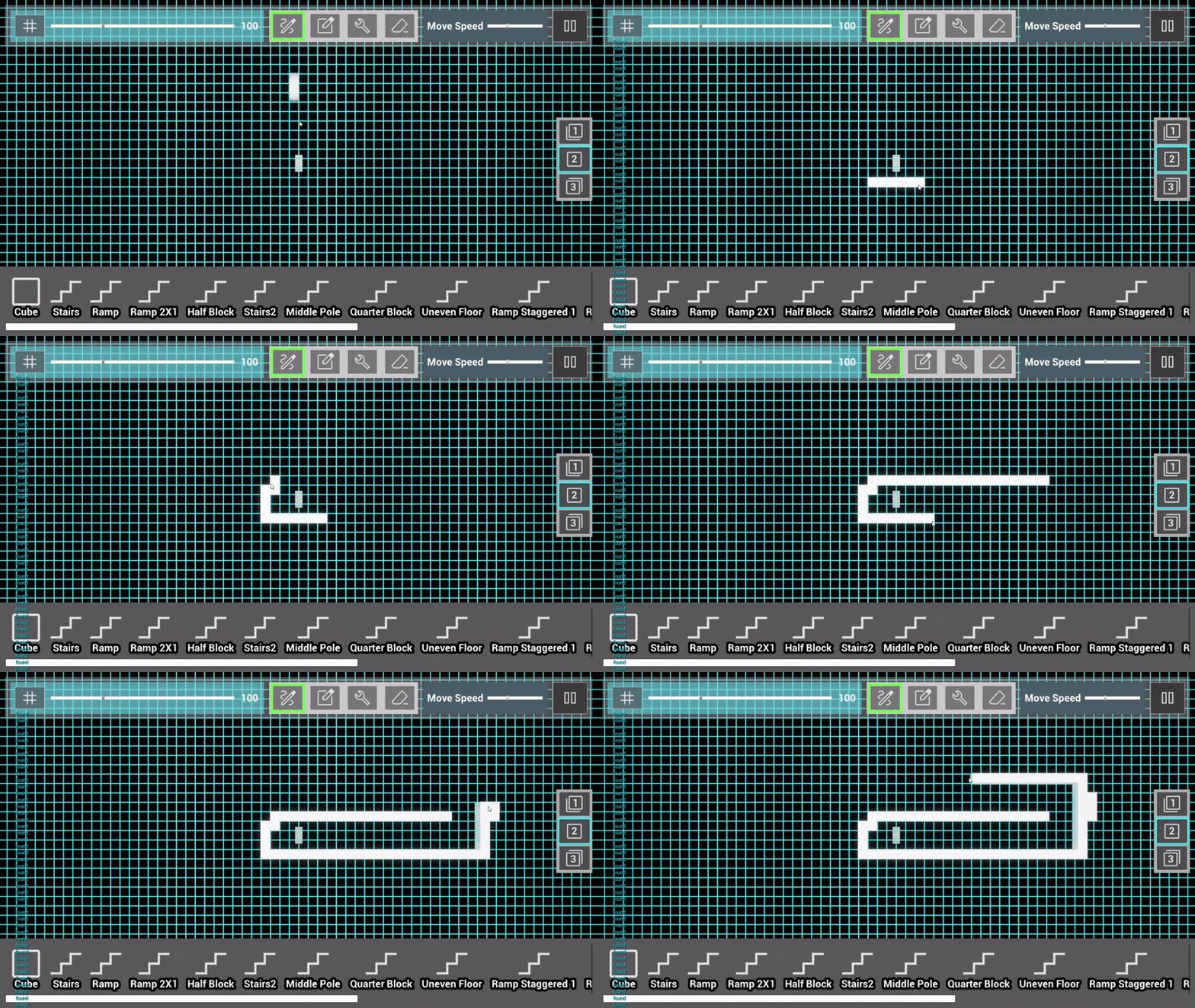
Places assets as the cursor clicks and drags along the grid.
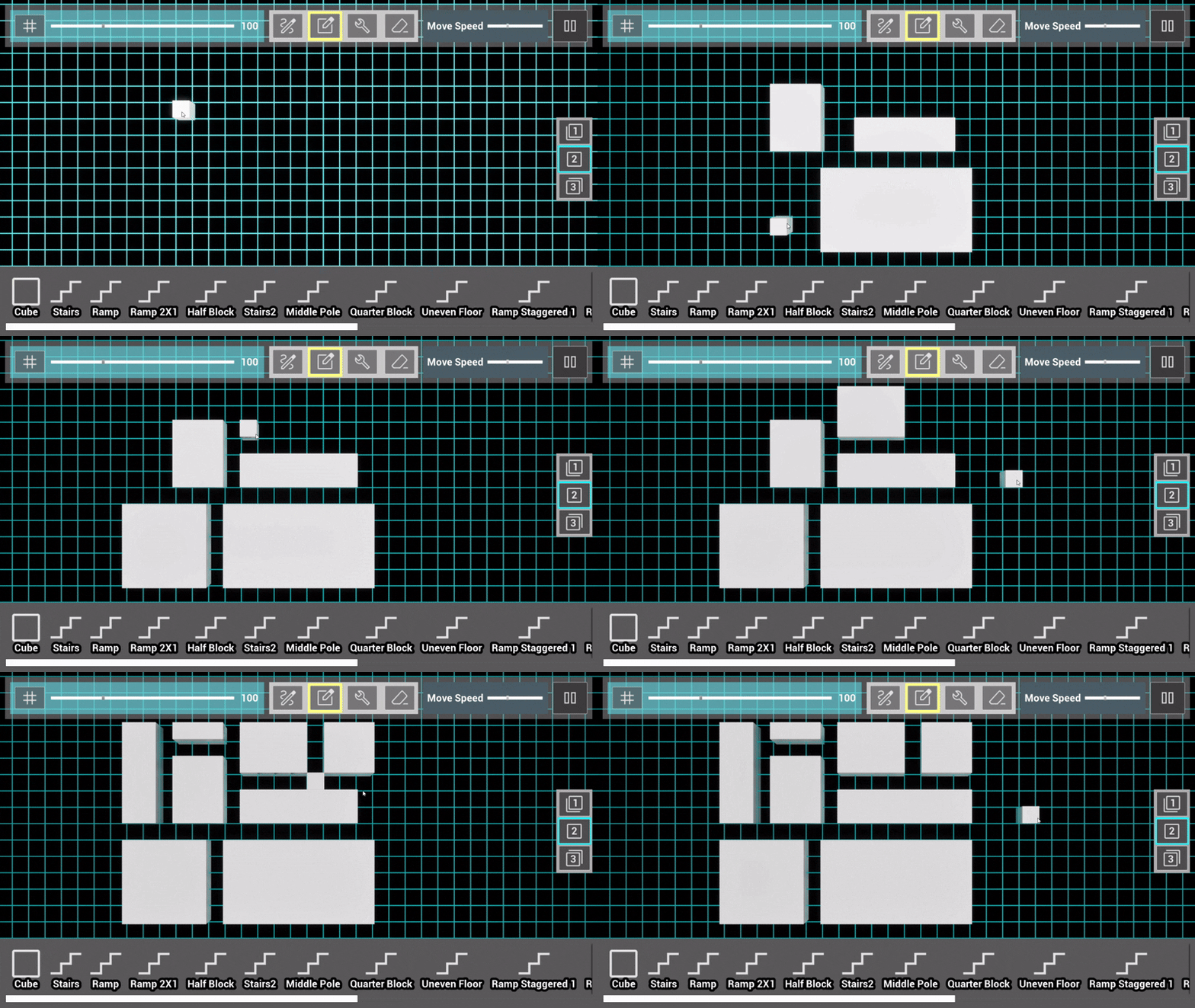
Places assets in a rectangular area as the cursor clicks and drags along the grid.
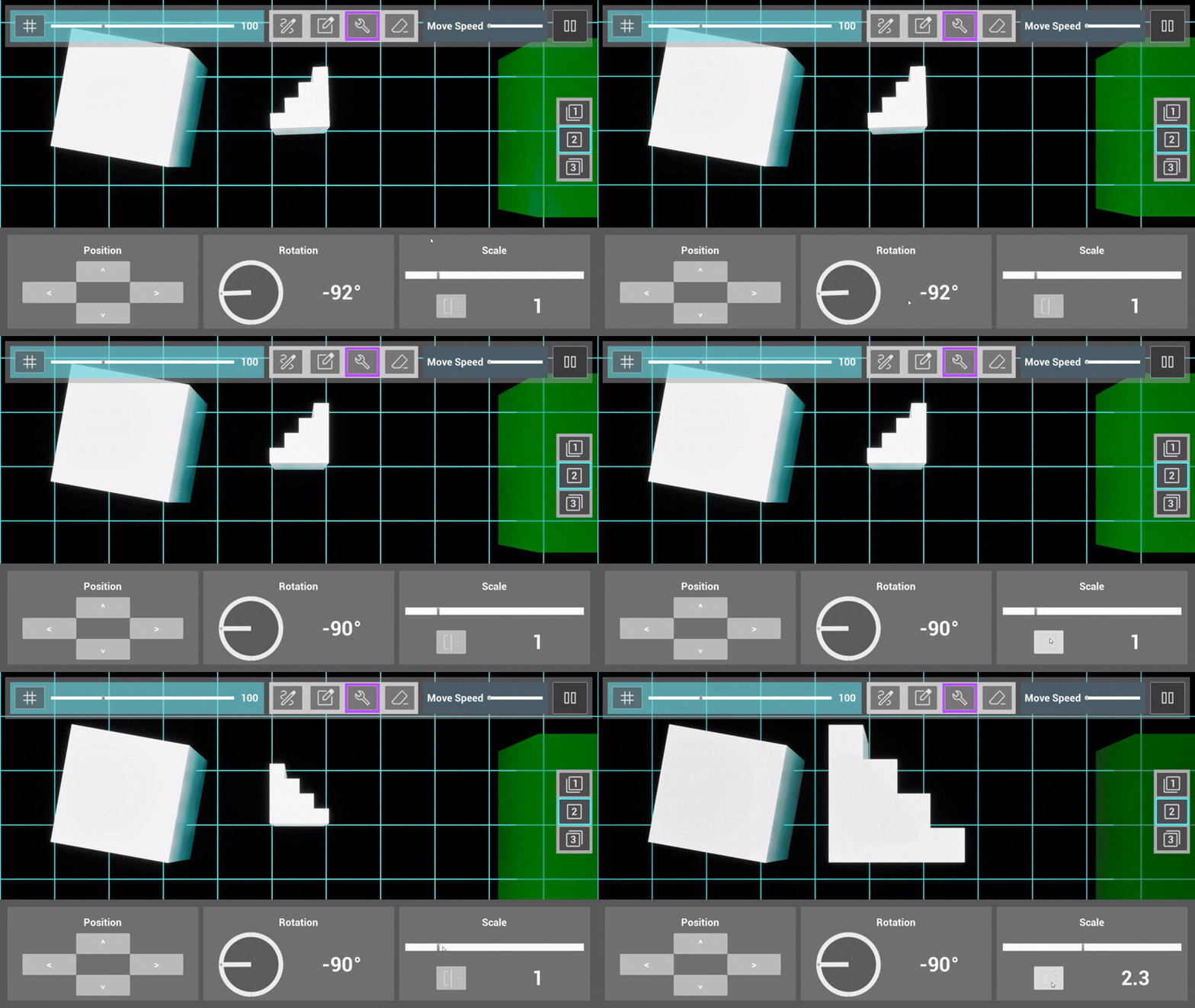
Alters a placed asset's transform properties such as position, rotation, and scale.
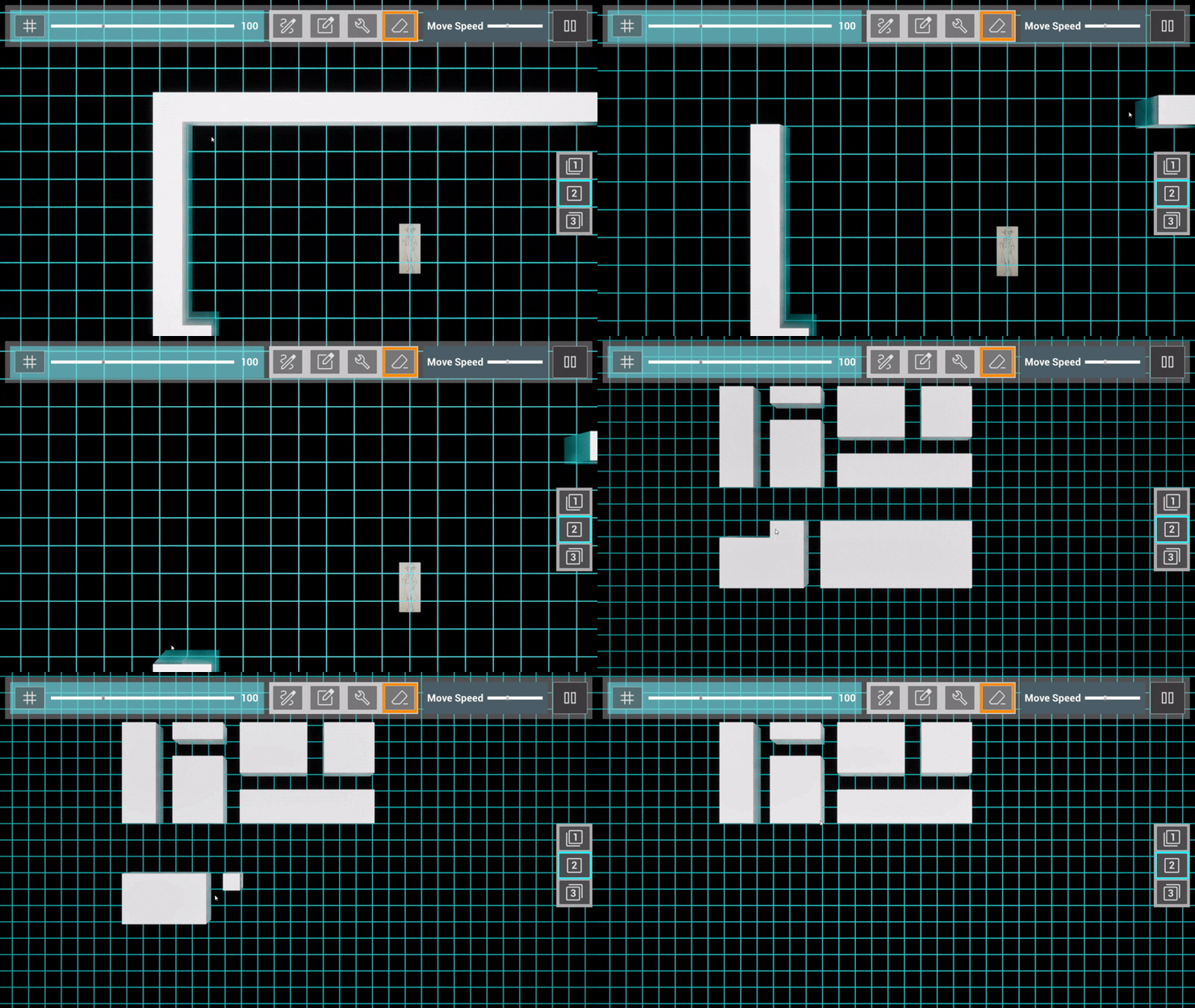
Removes assets from the grid as the user clicks and drags.
As I built the functionality for this Level Editor, I also had to make the interface to use and test it. Working without a User Experience Designer on this project, I was responsible for designing the entire UI. I based it off of Geometry Dash's Editor but had the goal to make it less cluttered. I used Google Icons to get assets for the different buttons, but did not make any assets myself.
I knew this HUD would need a lot of widgets and buttons, so I planned out how to structure the UI for this system. I created a HUD widget that had a widget for the top menu, bottom menu, and side menu. Each of those widgets were made up of multiple smaller widgets to break up the sections of the menu.
Also, I used event dispatchers in the Player Controller to model the observer programming pattern. This allowed the various UI elements and the Grid Manager to communicate without being tightly coupled.
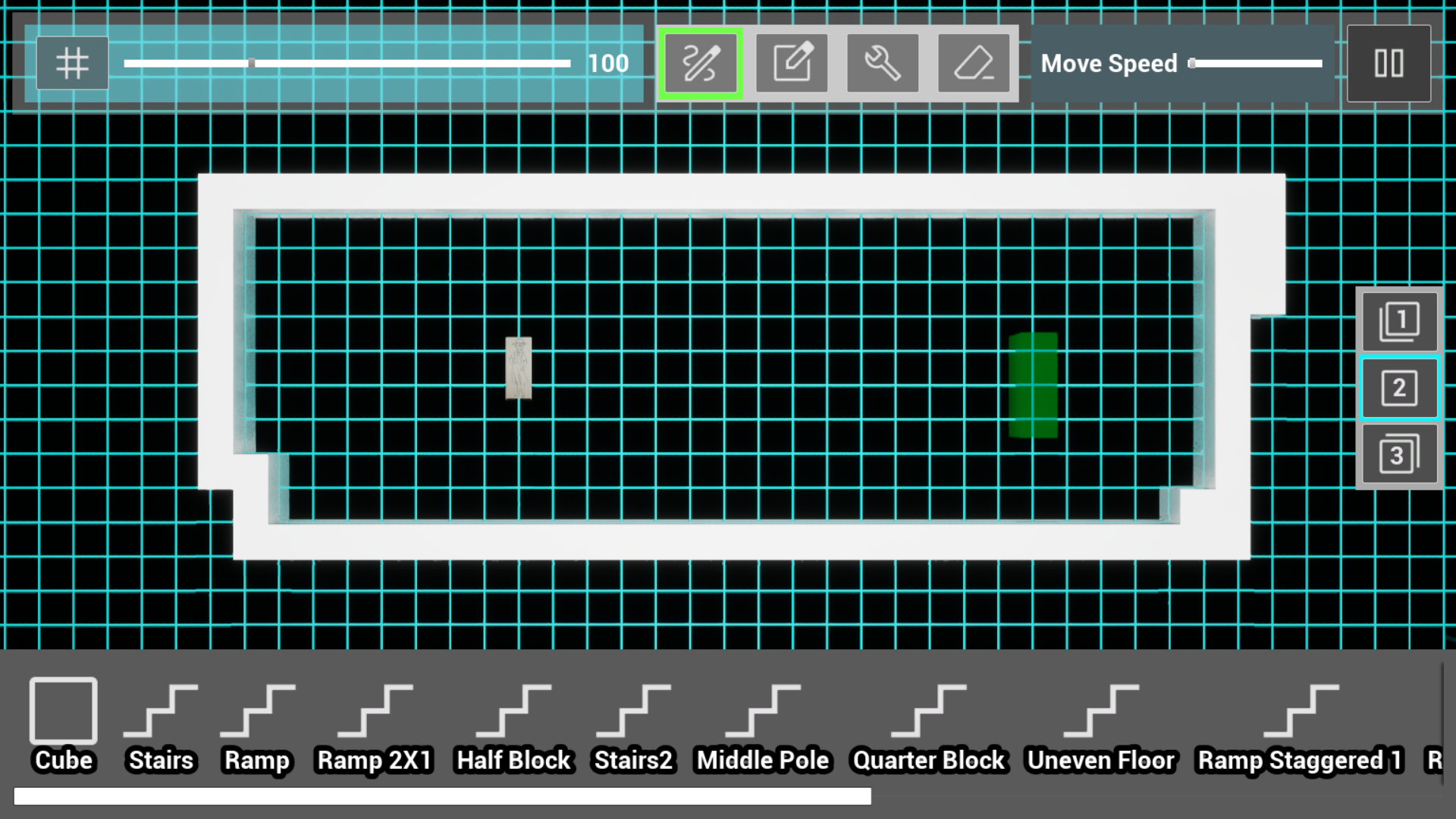
My biggest challenge when making the interface for this editor was the edit mode menu. After placing an asset, the user needed to be able to select it and set its transform properties.
After playing around with the different ways to implement editing, I noticed that most users wanted a way to edit using only their mouse. I ended up only including 2 ways to edit an object for each type of transformation, making sure the mouse worked for at least one of them, and that the alternate method allowed for precision.
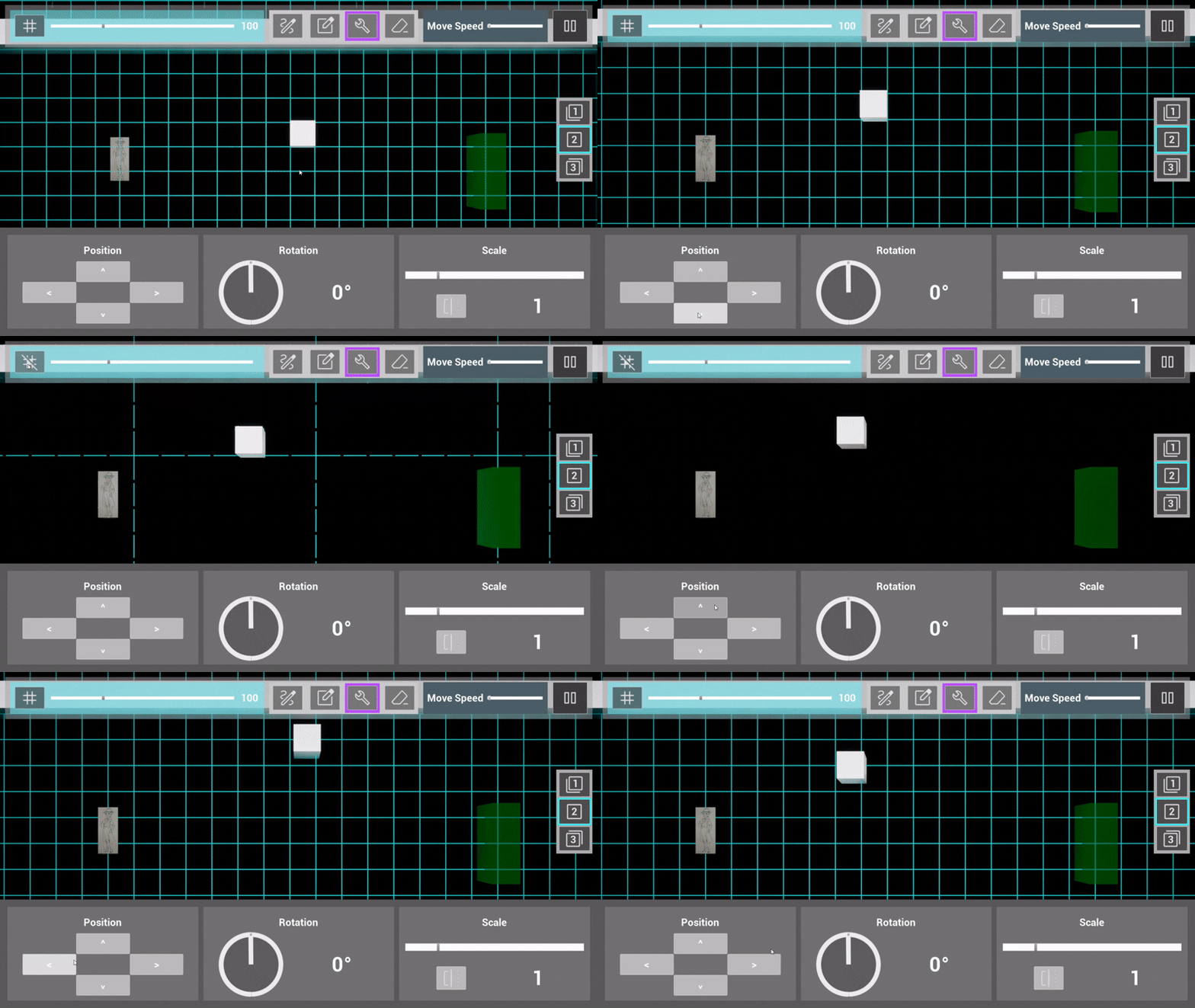
I included a d-pad so the user could move assets in the 4 cardinal directions. Assets would move one grid cell at a time, though that size was editable, and disabling grid snapping altogether would allow for more fine tuned placement.
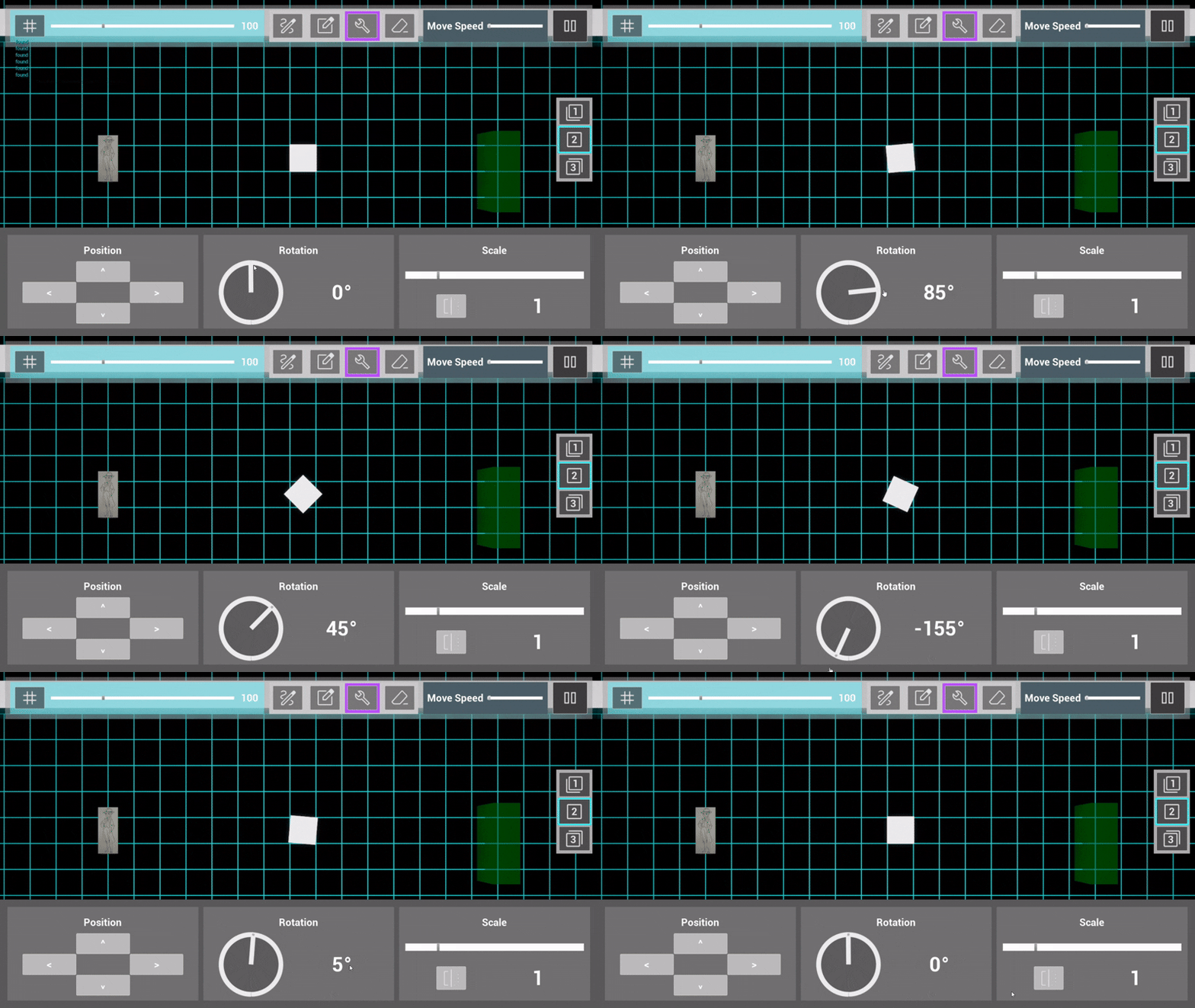
For rotation, I added a radial slider so the user could quickly see the different rotation states, as well as a text box to input precise rotation angles.
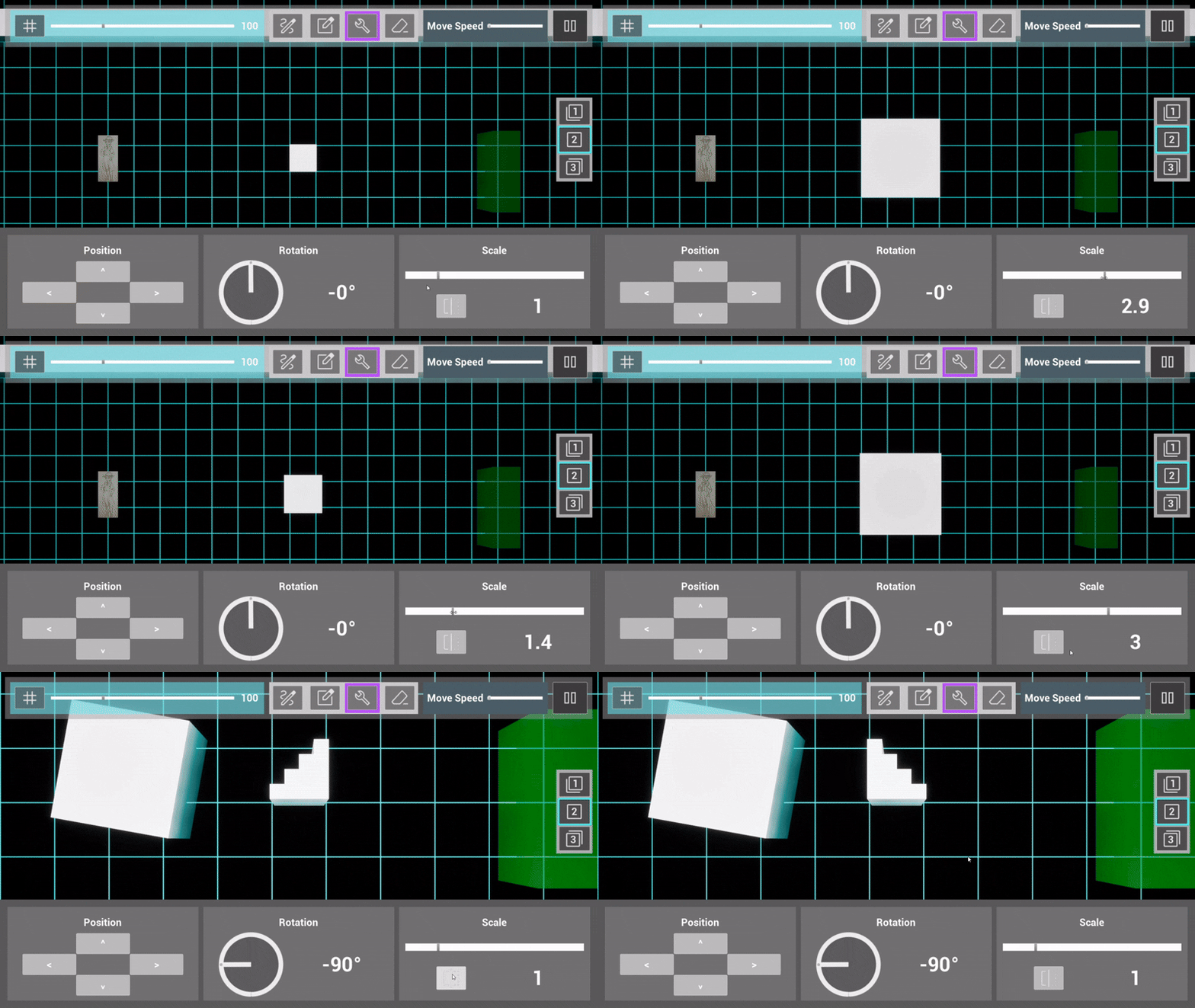
For the scaling interface, I used a linear slider for the mouse input as well as an input text box for precise scaling. This area had extra space in it, so I also included buttons to flip assets to get angles that rotation couldn’t reach being limited to one axis.
These edit options were enough for the designers to build out their levels and playtest. I kept an ongoing list of ideas for iteration on the editor and interface and would consistently ask for and receive feedback from the designers to make improvements.
Once the editor was functional, I was tasked with making the functionality for saving and loading different levels organized into a campaign. The end goal was for players to be able to design levels themselves and share with other players. My initial thought was to use Unreal’s built in save system, however after some research I found a limitation of this system is sharing since the save files are buried during packaging. That led me to researching JSON files.
I have never used JSON files or made save functionality for games I’ve worked on before, so this was a first for me. I started by using blueprints to prototype what system would satisfy the requirements the best. Once I settled on a strategy, I built it using C++.
I used a Blueprint Function Library to contain all the utility functions needed for menus. Also, I used a few structs to organize all the asset data into levels, and the levels into campaigns with all of the associated data for the player’s unlocked abilities. I wrote documentation that I kept up to date of all the structs and the utility functions in the function library.
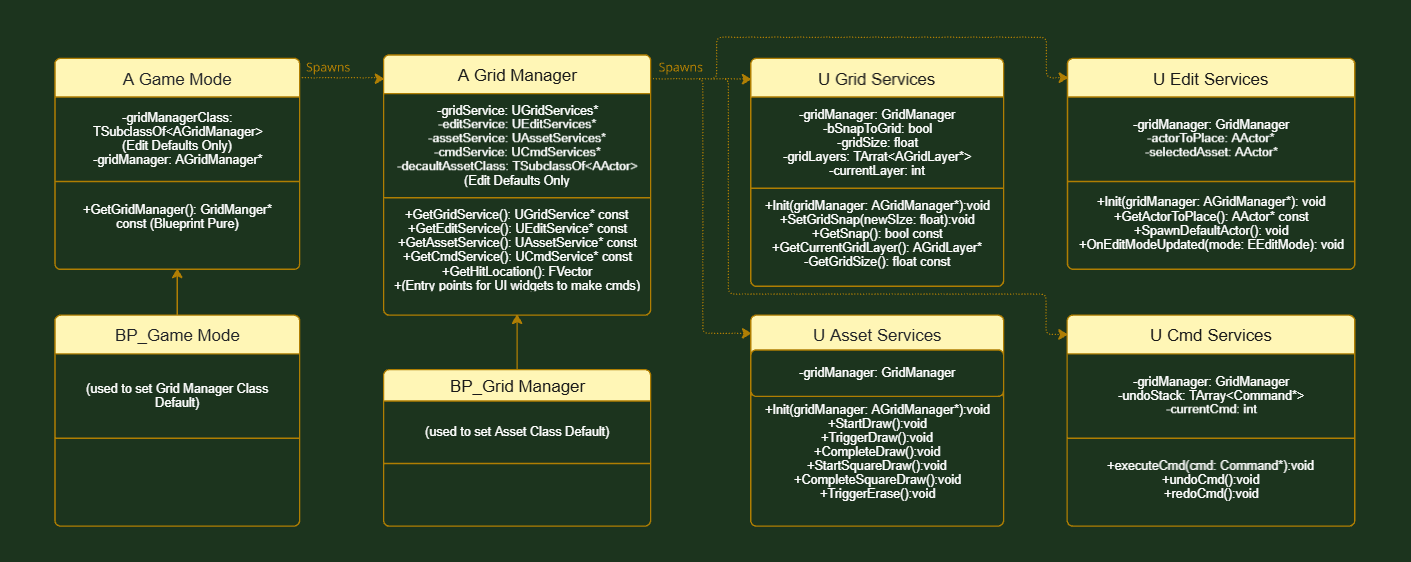
A few months after working on this project, I was reading Game Programming Patterns by Robert Nystrom and learned of the command programming pattern. As I read more about it, I realized this level editor would be the perfect place to implement that pattern. Each input, whether through the keyboard or UI elements, could be wrapped in an object to contain variables, and then stored in a stack to include functionality for undoing and redoing actions, something this editor desperately needed.
So I dedicated one week to two goals:
Lots of scratch paper and one week later, I had successfully implemented a version of the command pattern, and had the framework to implement the rest of the grid manager functionality using service objects. Rather than showing all the header files I made to make this system functional, I made a UML diagram to showcase the architecture.